
SlidesAI: Features, Pricing & How to Create AI Slides
SlidesAI: Features, Pricing & How to Create AI Slides
Creating a professional presentation can take hours. You may need to research a topic, organize information, write slide content, choose images, adjust layouts, and fix formatting. For students, teachers, marketers, freelancers, and business professionals. This process can quickly become stressful.
SlidesAI aims to make presentation creation faster by using artificial intelligence to transform text, topics, notes, prompts, and documents into structured slide presentations. Instead of starting with a blank presentation, users can give the tool their content and use AI to create a first draft that they can review and customize.
What Is SlidesAI?
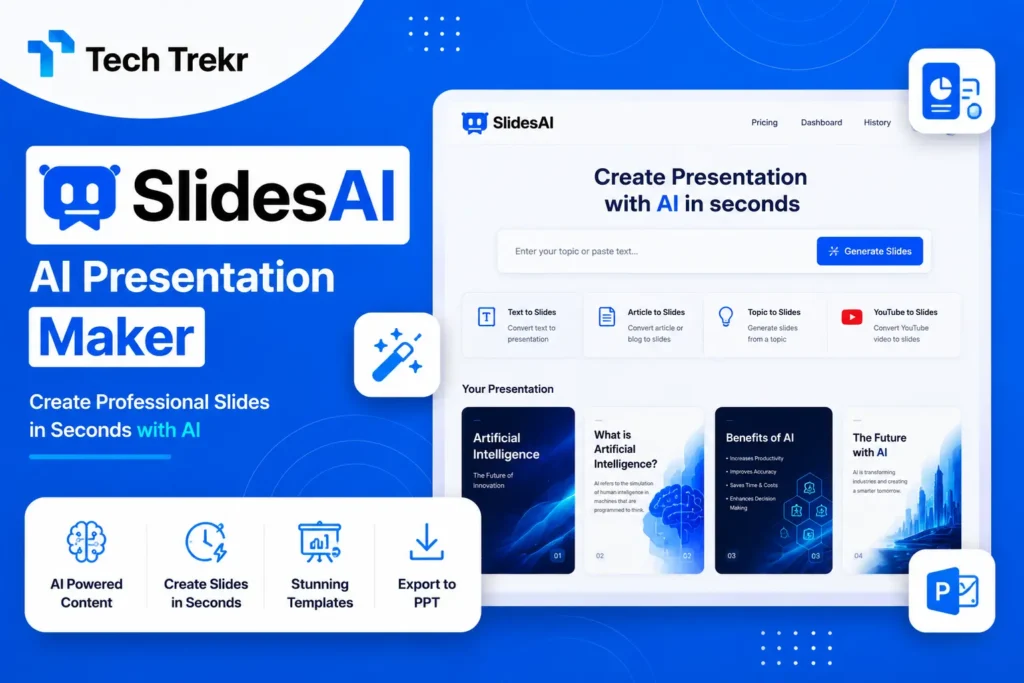
SlidesAI is an AI-powered presentation creation platform designed to help users create slide decks with less manual work. It can take information such as text, prompts, topics, notes, or documents and turn that input into a structured presentation.
The platform is designed to fit into familiar presentation workflows. According to its official help resources, SlidesAI is available through its web platform and integrates with Google Slides and Microsoft PowerPoint. It also provides a ChatGPT workflow for creating presentations from prompts.
The basic idea is simple: instead of spending significant time building every slide from scratch, you provide the information you want to present and let AI help organize it into a presentation. This can be especially useful when you already have a report, article, research material, business plan, or collection of notes that needs to become a slide deck.
How Does SlidesAI Work?
SlidesAI follows a relatively straightforward workflow.
1. Provide Your Content
Start by entering a topic, prompt, notes, or written content. Depending on the workflow you use, you may also be able to provide a document as the source material. The quality of your input matters. A clear topic and well-organized information can help the AI produce a more useful presentation.
2. Generate the Presentation
The AI analyzes your input and creates a presentation structure. It organizes information into slides with headings and supporting content. The goal is to give you a usable first draft instead of forcing you to begin with an empty slide deck.
3. Review the Structure
One useful part of an AI presentation workflow is reviewing the structure before finalizing the deck. SlidesAI’s documentation describes an outline-review process that allows users to maintain control over the presentation’s organization. This is important because AI-generated content should not automatically be considered final. You should check whether the order of topics makes sense and whether important information is missing.
4. Edit and Customize
After generating your presentation, you can refine the content and design. SlidesAI provides AI-assisted options for rewriting, rephrasing, shortening text, and adjusting presentation themes and layouts. You can also review images and replace content that does not match your topic or brand.
5. Export or Share
Once your presentation is ready, you can export it through supported formats and workflows. SlidesAI’s help documentation lists options including PowerPoint, Google Slides, and PDF.

Key Features of SlidesAI
AI-Powered Presentation Creation
The central feature is the ability to transform written information into slides. This can save time for users who already have content but don’t want to manually divide it into presentation sections.
Text-to-Slides Workflow
If you have an article, notes, or an outline, SlidesAI can help turn that information into a presentation structure. This is particularly useful for converting existing content into a format suitable for meetings, classrooms, or business presentations.
AI Content Refinement
Creating the first draft is only part of presentation creation. SlidesAI also provides AI tools for rewriting, rephrasing, and shortening slide text. This can help reduce lengthy paragraphs and make information easier to present.
Themes and Layouts
Presentation design is another area where AI can reduce manual work. Users can customize themes and layouts rather than manually adjusting every element on every slide.
Image Support
Visual content is important for presentations. SlidesAI supports adding stock and AI-generated images, giving users options for making their slides more visually engaging.
Multiple Languages
SlidesAI supports presentations in multiple languages. Its official resources currently describe support for more than 20 languages, while its help center states that presentations can be created in 100+ languages. Users targeting international audiences should still verify language availability for their specific workflow.
How to Use SlidesAI to Create a Presentation
If you are a beginner, you can follow this simple process:
- Step 1: Decide the purpose of your presentation.
- Step 2: Collect your research, notes, or existing content.
- Step 3: Open SlidesAI through the platform or supported presentation workflow.
- Step 4: Enter your topic or provide your source material.
- Step 5: Review the generated outline and slide structure.
- Step 6: Generate the presentation.
- Step 7: Check every slide for accuracy and clarity.
- Step 8: Rewrite sections that sound generic or repetitive.
- Step 9: Customize the theme, layouts, images, and branding.
- Step 10: Export or share your finished presentation.
The most important step is the review process. AI can help you create a draft quickly, but human editing remains important for accuracy, tone, storytelling, and audience relevance.
SlidesAI for Students and Teachers
Students can use SlidesAI to convert research notes, assignments, or study material into presentations. For example, a university student in Pakistan could use it to organize a presentation about digital marketing, computer science, business, or a final-year project.
Teachers and educators can also use AI presentation tools to create lesson materials and classroom presentations more efficiently. However, students should always verify AI-generated facts and follow their school’s or university’s academic policies regarding AI use.
SlidesAI for Business and Marketing
Business professionals often need presentations for meetings, proposals, training sessions, sales pitches, and internal reports. Marketers can use SlidesAI to transform campaign information, research, or written reports into presentation drafts. A freelancer could also use an AI-generated deck as a starting point for a client proposal.
For US businesses, the biggest benefit may be productivity and faster content production. For Pakistani freelancers and small businesses, the ability to reduce manual design work may be particularly valuable when budgets and resources are limited. In both cases, the final presentation should be customized with company branding, accurate data, and audience-specific messaging.
SlidesAI Pricing
SlidesAI currently offers different plans designed for different levels of usage. Its official pricing page lists a Basic plan at $0 per month, a Pro plan at $10 per month when billed annually, and a Premium plan at $20.83 per month when billed annually. The listed limits and features vary by plan, so users should check the official pricing page before subscribing because pricing and plan details can change.
The free plan may be suitable for occasional users who only need to create a limited number of presentations. Students and casual users can test the workflow before deciding whether they need a paid subscription. Professionals, educators, and frequent presentation creators may benefit more from higher usage limits and additional features available in paid plans.
Pros and Cons of SlidesAI
Pros
- Speeds up the presentation creation process
- Converts written content into structured slides
- Useful for beginners who struggle with presentation design
- Works with familiar presentation workflows
- Provides AI-powered text refinement
- Supports themes and layouts
- Offers multiple presentation creation methods
- Can be useful for students, educators, marketers, and businesses
Cons
- AI-generated content still needs human review
- The first draft may require editing and customization
- AI may not always understand complex context correctly
- Design quality may vary depending on the input and presentation requirements
- Users creating high-end branded presentations may need additional manual work
SlidesAI vs Other AI Presentation Tools
The best AI presentation tool depends on your goals.
SlidesAI can be a strong option if you already work with Google Slides or PowerPoint and want to quickly transform written content into an editable presentation.
Gamma may appeal to users who prioritize modern, visually engaging, web-based presentations and storytelling.
Canva is a popular choice for users who want extensive design resources, templates, and broader visual editing capabilities.
Beautiful.ai focuses heavily on automated layouts and professional presentation design.
Is SlidesAI Worth Using?
SlidesAI can be worth considering if your biggest problem is the time required to move from written information to a structured presentation.
It is particularly useful when you already have content and want AI to help organize it into slides. Students can use it for academic presentations, educators can create teaching materials, and professionals can speed up the preparation of business decks.
However, it should not be treated as a complete replacement for human judgment. A presentation is more than a collection of slides. Strong presentations require a clear message, logical storytelling, accurate information, and an understanding of the audience. The best approach is to use SlidesAI as a productivity assistant: let AI handle some of the repetitive work, then use your own expertise to improve the final result.
FAQS
What is SlidesAI used for?
SlidesAI is used to create presentations from topics, prompts, text, notes, and documents. It helps users generate and refine slide content while reducing manual formatting work.
Is SlidesAI free?
Yes. SlidesAI offers a free Basic plan, with paid plans available for users who need higher limits and additional capabilities.
Can SlidesAI create PowerPoint presentations?
Yes. SlidesAI supports PowerPoint workflows and provides options for working with or exporting presentations in PowerPoint-compatible formats.
Can I use SlidesAI with Google Slides?
Yes. SlidesAI integrates with Google Slides, allowing users to create presentations within a familiar Google Workspace workflow.
Is SlidesAI good for students?
Yes, it can help students turn research and notes into presentation drafts. However, students should fact-check the content and follow their institution’s rules for AI-assisted academic work.
What is the best alternative to SlidesAI?
There is no single best alternative for everyone. Gamma, Canva, and Beautiful.ai may be worth exploring depending on whether you prioritize storytelling, design resources, or automated layouts.